The short answer: to auto post to Facebook groups you've joined, you need a tool that works through your own logged-in browser, because Meta removed the API that schedulers used to post into groups in 2024. With AutoGP that means installing the Chrome extension, connecting it to an autogp.ai account, pressing Sync Groups, writing one post with spintax so the wording varies, and pressing Start Posting on a small first batch. The whole setup takes about fifteen minutes, and your first run should be five to ten groups, not fifty.
This guide is the hands-on version. If you're still deciding whether to post by hand or use a tool at all, start with how to post to multiple Facebook groups at once, which compares the two honestly. Everything below assumes you've decided to try a tool and want to get the first run right.
Before you start
You need three things:
- Google Chrome on a computer (not a phone), signed in to the Facebook account you post from.
- Membership in the groups you want to post in. AutoGP posts to groups you already belong to, as a member or an admin. It doesn't join groups for you.
- One post you actually want to send. A real offer, event or listing makes the first run meaningful, and it's easier to judge the results.
You don't need your Facebook password. AutoGP never asks for it and never stores it: it works inside the Chrome session where you're already signed in to Facebook.
Step 1: Install the extension
Install the AutoGP Chrome extension in the same Chrome profile you use for Facebook. If you keep separate Chrome profiles for work and personal browsing, this matters: the extension sees the Facebook account signed in to that profile, and no other.
Pin the extension to the toolbar so you can open it with one click. Everything else in this guide happens in the extension.
Step 2: Create or sign in to your AutoGP account and connect
The extension is paired with an account at autogp.ai. If you don't have one yet, create it there; the free plan includes 19 free posts with no card required, which is plenty for a first batch and a second, larger one. If you already have an account, sign in.
Then connect the extension to that account. Your post count, templates and results are tied to the AutoGP account, while the posting itself happens in your browser.
Step 3: Answer the account-age question
The first time you open AutoGP, it asks how old your Facebook account is and whether it has posted in groups before. Answer honestly, because this sets your starting daily limit.
These are AutoGP's defaults, not Facebook rules:
| Facebook account age | Starting daily limit | Daily ceiling |
|---|---|---|
| Under 1 month | 25 posts | 35 posts |
| 1 to 6 months | 25 posts | 50 posts |
| 6 months to 2 years | 25 posts | 75 posts |
| Over 2 years | 30 posts | 100 posts |
The starting limit is scaled down (×0.6) if the account has never posted in groups and up (×1.6) if it posts in groups regularly, but never below 25 a day. It then rises about 30% a week until it reaches the ceiling for your account's age. So a three-year-old account that posts in groups regularly starts at about 48 a day, and one that never has starts at 25.
If you'd rather set your own number, you can switch to a manual daily limit instead. Either way, AutoGP asks before a run would take you past the limit instead of stopping halfway through. The reasoning behind these numbers is in Facebook group posting limits.
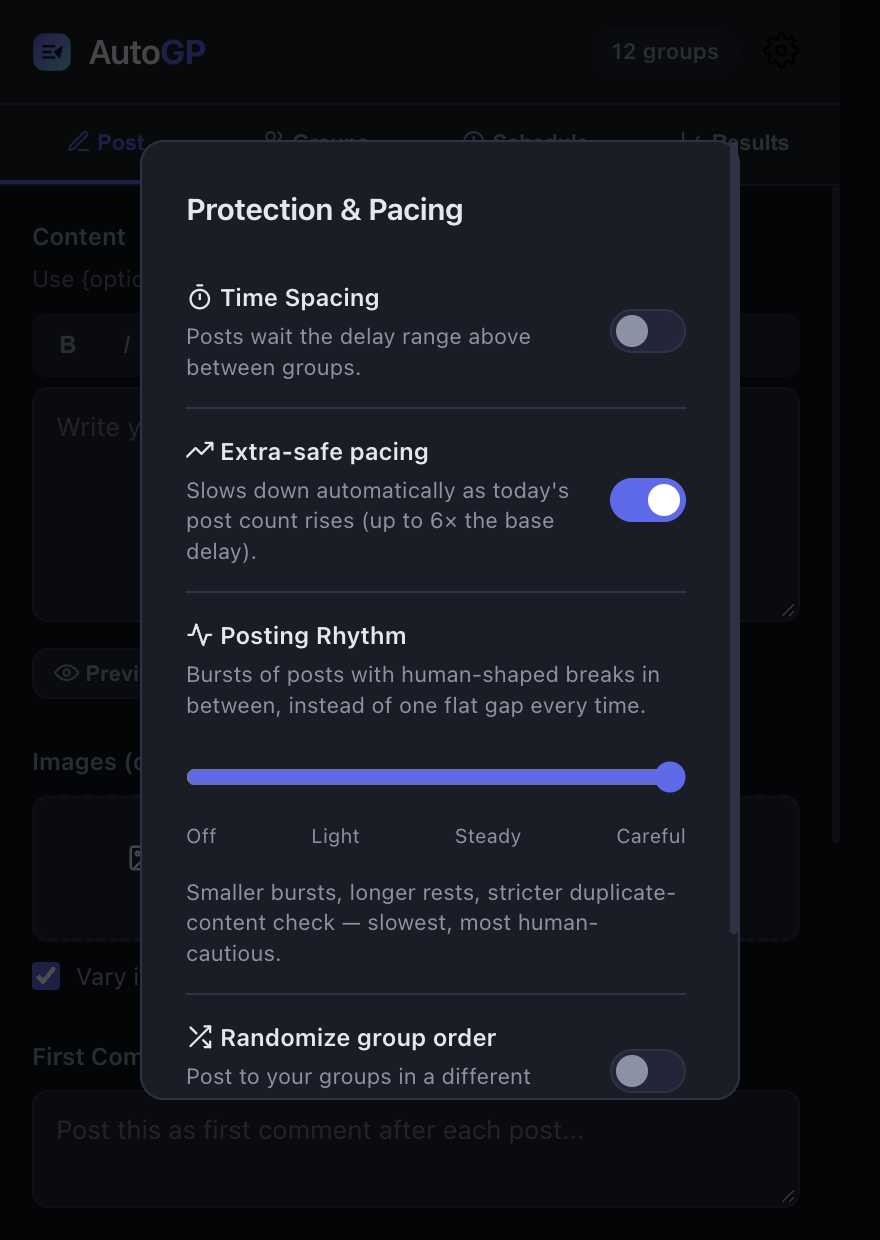
While you're on that screen, it's worth knowing what the other defaults do:
- Random delays between groups, within a range you set. With Extra-safe pacing on, which it is by default, the wait stretches as your count for the day climbs: ×1.5 after 10 posts, ×2.5 after 30, ×4 after 60 and ×6 after 100, plus occasional longer rests.
- A posting window of 08:00 to 23:00 in your local time, changeable in Settings.
You don't need to change any of this for a first run. The defaults are deliberately conservative.
Step 4: Sync your groups
Open the Groups tab and press Sync Groups. AutoGP reads the list of groups your Facebook account belongs to, including the ones where you're an ordinary member, and shows each one with its member count. An account in several hundred groups takes a couple of minutes to sync. You only need to sync again after you join or leave groups.
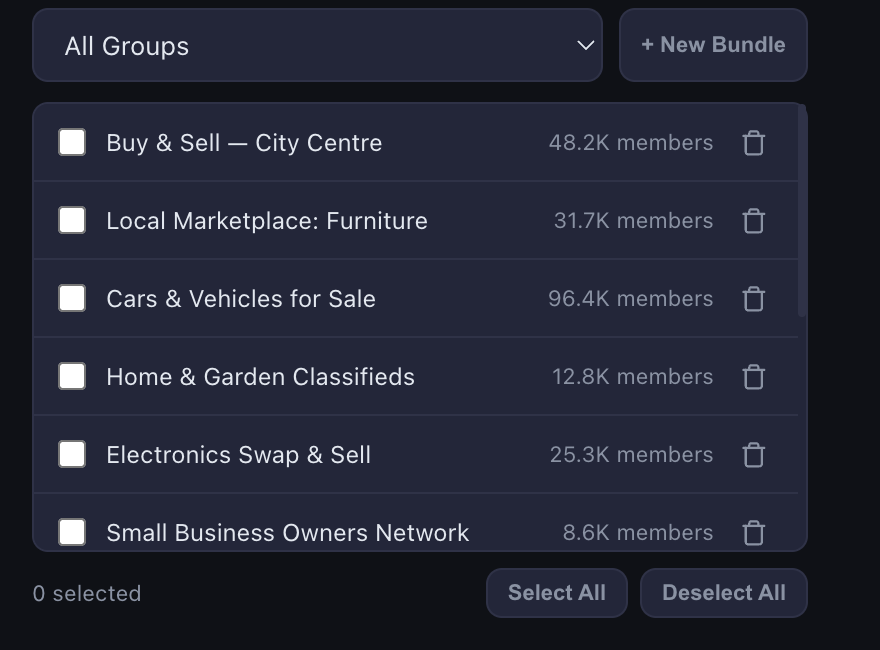
Scroll through the list once. Most people find groups they joined years ago and forgot about, and groups where their post would be off-topic. Those are worth leaving out of every run. Once you know which groups you post to together, save them as a bundle, for example "local buy and sell" or "small-business owners", and pick the bundle next time instead of ticking groups one by one.
Step 5: Write your first post with spintax
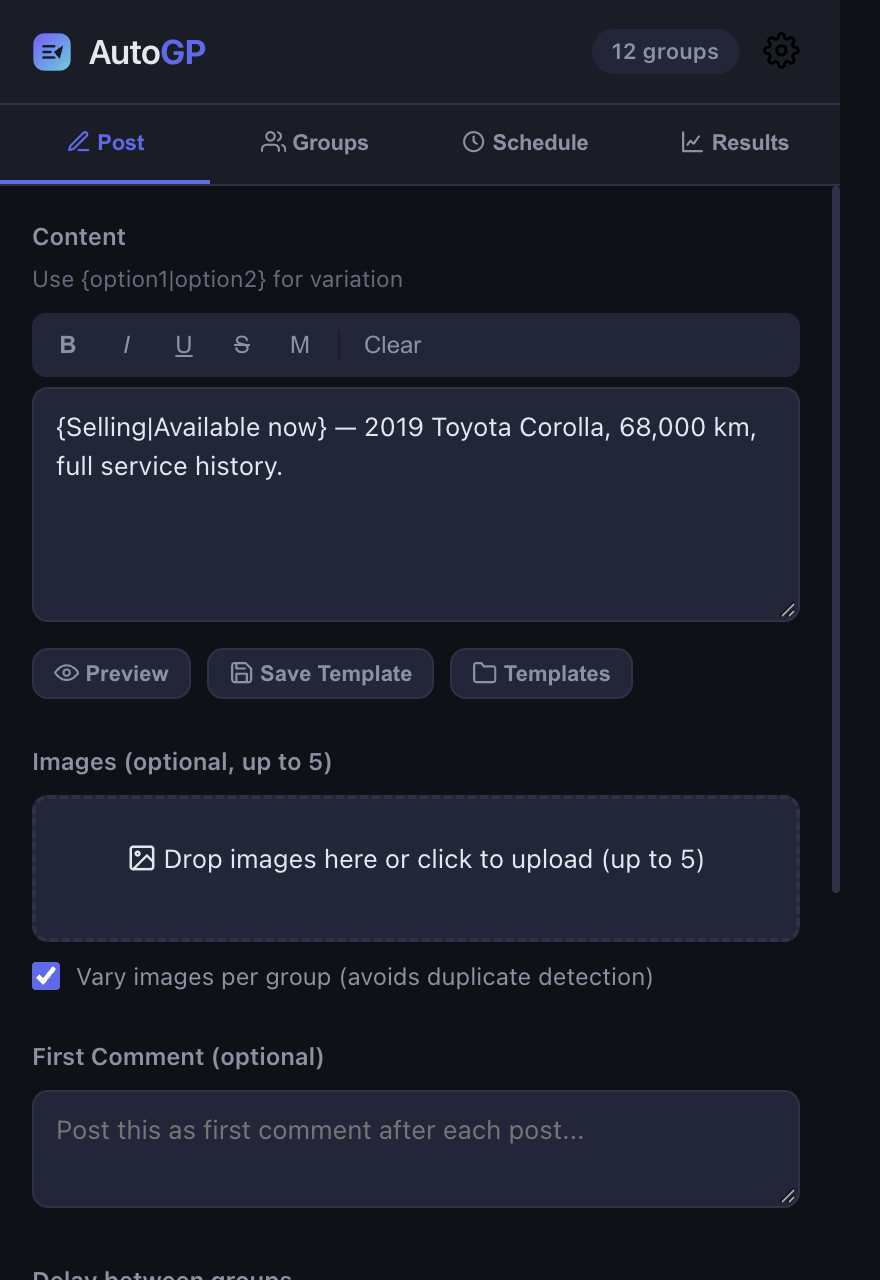
Open the Post tab and write the post the way you'd write it for one group. Then add variation with spintax: put a few alternatives inside curly braces, separated by a vertical bar. {Hi|Hello|Hey} everyone becomes "Hi everyone" in one group and "Hey everyone" in another.
A few habits make the first post better:
- Vary whole phrases, not single words. Different openings, a different order of details and a different call to action change a post in a way a reader notices. Swapping "great" for "nice" doesn't. The spintax guide goes deeper.
- Press Preview. It shows sample versions before anything is sent, which is the quickest way to catch a missing brace or an awkward combination.
- Add images if the post needs them. Up to ten per post. With "Vary images per group" ticked, as it is by default, each group gets a copy with slight pixel-level changes rather than the identical file.
- Use the first comment for extra detail, such as a link, if the groups you post to allow one there. Check the rules first; some groups ban links anywhere.
- Use styling sparingly. The styling bar can make text bold, italic, underlined, struck through or monospace. It does this with look-alike Unicode characters, which screen readers and Facebook search may not read as normal text, so keep it to a heading or a price.
When you're happy with it, press Save Template so you can reuse or tweak it later from Templates.
Step 6: Choose a small first batch
For the first run, tick five to ten groups. Choose ones where:
- the rules allow this kind of post today (check for promo-day rules and link bans),
- you've been a member for a while, and
- the topic is a close fit.
A small first batch tells you more than a big one. You'll see which groups hold posts for admin approval, which don't allow members to post, and how long a run takes with the delays in place, without spending a large part of your daily limit or sending an untested post to fifty groups. If your posts are promotional, can you advertise in Facebook groups explains how group rules usually handle that.
Step 7: Press Start Posting
Press Start Posting. AutoGP opens each group in a small window in a corner of your screen, types the post into Facebook's own composer, attaches any images, presses Post and checks the post went through before moving on to the next group.
Posts go out one at a time with deliberate gaps, so "auto post" means one setup, not one instant. A run of ten groups takes a while. Chrome has to stay open until it finishes, and your computer shouldn't go to sleep partway through. You can use the computer for other things in the meantime.
Two safeguards run in the background. If the text is very similar to something you posted in the last 24 hours, AutoGP warns you before the run starts; it's a warning, not a block, and usually a sign to add more spintax. And if Facebook signals that the account itself is blocked, rate-limited or signed out, AutoGP stops the whole run rather than repeating the same rejected action in every remaining group.
Step 8: Read the Results tab
When the run finishes, open Results. It shows the run group by group, with the reason for anything that didn't go through, plus totals: posts made, groups reached, the last 30 days and the groups you post to most.
What you'll typically see:
- Posted. The post is live in the group.
- Pending admin approval. The group holds new posts for an admin or moderator. The post was submitted, so AutoGP counts it as a success; it appears once approved, which can take minutes or days. There's more in post waiting for admin approval.
- Skipped with a reason. For example, a group where only admins can post, a group that's unavailable, or one still holding your membership request. That's the group's setting, not a problem with your account. If the same group refuses every time, remove it from your bundle; why you can't post in some Facebook groups covers the usual causes.
If the whole run stopped early with an account-level reason, stop posting for the day, check your Account Status on Facebook, and wait out any restriction before you try again.
After the first run
If the first batch went well, grow slowly. Add groups over the next few runs rather than jumping to your whole list, and let the warm-up raise your daily limit week by week. Keep writing fresh spintax rather than reusing the same post every day, and spread runs across the day instead of one burst.
If you post on a routine, the Schedule tab can run posts at a set date and time and repeat them every few hours.
One honest note: posting to many groups can conflict with Facebook's rules, and no tool, AutoGP included, removes that risk. Conservative pacing, varied wording and respecting each group's rules lower it. The details are in the Facebook risk section of our terms and in is auto posting to Facebook groups safe.
For more guides like this one, browse Facebook group marketing. To see everything AutoGP does in one place, read post to multiple Facebook groups at once, and when your 19 free posts run out, the plans are on the pricing page.
Frequently asked questions
Can I auto post to Facebook groups I'm not an admin of?
Yes, as long as the group lets members post. AutoGP posts to groups you've joined as a member or admin. If a group holds posts for approval, that still applies, and a group where only admins can post is skipped, with the reason shown in Results.
Does AutoGP need my Facebook password?
No. It works through the Chrome session where you're already signed in to Facebook, and it never asks for or stores your password.
Does my computer have to stay on?
Yes. AutoGP posts from your own browser, so Chrome has to stay open until a run finishes, including for scheduled posts at the time they're due.
How many groups should my first run include?
Five to ten. It's enough to see how your groups respond and how long a run takes, without using much of your daily limit on a post you haven't tested.